
Sales Tax Calculator
Use “Add Tax” for subtotal → total, or “Remove Tax” for total → subtotal.
Results
| Item | Amount |
|---|---|
| Price (before tax) | — |
| Sales tax | — |
| Total (after tax) | — |
| Effective tax rate | — |
🔹 Table of Contents
- What Is Sales Tax?
- Sales Tax Formulas
- Worked Examples
- Real-Life Uses
- Tax-Inclusive vs Tax-Exclusive Prices
- Multiple Items and Partial Taxability
- Rounding and Why Totals Sometimes Look “Off”
- Sales Tax vs VAT
- Tips for Accurate Sales Tax Calculations
- Sales Tax for Businesses
- How to Find the Correct Sales Tax Rate
- Quick Recap
- FAQ
- References & Sources
🔹 What Is Sales Tax?
Sales tax is a percentage-based tax added to the price of goods and some services at the time of purchase. In everyday checkout language, you’ll often see a subtotal (before tax), a tax amount, and the total (after tax). This calculator helps you work both directions: add sales tax to a price, or remove tax from a tax-inclusive total.
The key idea is simple: a tax rate (for example, 8.25%) is applied to the taxable amount.
In many places, sales tax can vary by region and can include combined rates (state/province + local).
That’s why it’s useful to calculate totals quickly when you’re budgeting, invoicing, or comparing prices.
- Subtotal (before tax): the listed price before any sales tax is added.
- Sales tax: the extra amount charged based on the tax rate.
- Total (after tax): subtotal plus sales tax.
- Tax-inclusive price: a total that already includes sales tax (common on receipts).
If you’re shopping online, planning business pricing, or reviewing receipts, this tool makes it easy to confirm whether a final amount looks right and to estimate tax impact before you commit to a purchase.
🔹 Sales Tax Formulas
Sales tax calculations are straightforward once you separate the rate from the amount.
Let the sales tax rate be r as a decimal (for example, 8.25% = 0.0825).
| Scenario | Formula |
|---|---|
| Add sales tax to a subtotal |
Tax = Subtotal × rTotal = Subtotal + Tax = Subtotal × (1 + r)
|
| Remove sales tax from a tax-inclusive total |
Subtotal = Total ÷ (1 + r)Tax = Total − Subtotal
|
| Effective tax rate check | Effective Rate = (Tax ÷ Subtotal) × 100% |
The “remove tax” formula is the one people often get wrong by subtracting a percentage from the total.
If a total already includes tax, you typically need to divide by (1 + r) to find the pre-tax amount.
🔹 Worked Examples
These examples show both directions: adding tax to a listed price and removing tax from a receipt total. You can replicate the math manually or just enter the same values into the Sales Tax Calculator above.
Example 1: Add tax to a subtotal
- Subtotal:
$100.00 - Sales tax rate:
8.25%(sor = 0.0825)
Tax = 100.00 × 0.0825 = 8.25
Total = 100.00 + 8.25 = 108.25
Example 2: Remove tax from a tax-inclusive total
- Total (after tax):
$108.25 - Sales tax rate:
8.25%(sor = 0.0825)
Subtotal = 108.25 ÷ (1 + 0.0825) = 108.25 ÷ 1.0825 = 100.00
Tax = 108.25 − 100.00 = 8.25
If you’re estimating totals for a cart with multiple items, consider using a percentage tool to sanity-check the tax portion. You can also use the Percentage Calculator to quickly calculate the tax amount on a subtotal or compare different rates.
🔹 Real-Life Uses
Sales tax calculations show up everywhere: shopping carts, invoices, receipts, procurement, and budgeting. This is where the “add tax” and “remove tax” modes are most useful.
Estimate your final checkout total before you buy, especially when comparing prices across stores or regions. For travel or relocation planning, knowing the after-tax cost helps you budget more accurately.
Split an invoice into subtotal and tax for bookkeeping. If a customer paid a tax-inclusive amount, “remove tax” gives you a clean breakdown for your records.
Verify whether the tax amount on a receipt matches the posted rate. This can help catch mistakes when multiple local rates apply.
If you set a target “out-the-door” price, removing tax lets you estimate the pre-tax price you need to display to hit that target.
If you’re comparing different totals or tracking price changes over time, you can also use the Percentage Increase Calculator to see how much a total changed after tax rate changes or price adjustments.
🔹 Tax-Inclusive vs Tax-Exclusive Prices
A lot of confusion happens because different places show prices differently: some show the tax-exclusive price (subtotal) and add tax at checkout, while others show a tax-inclusive price (total) where tax is already included. This calculator supports both situations so you can always get a clear breakdown.
If you already have the final amount from a receipt and want the pre-tax value, use:
Subtotal = Total ÷ (1 + r).
Subtracting r% from the total is usually not correct for tax-inclusive prices.
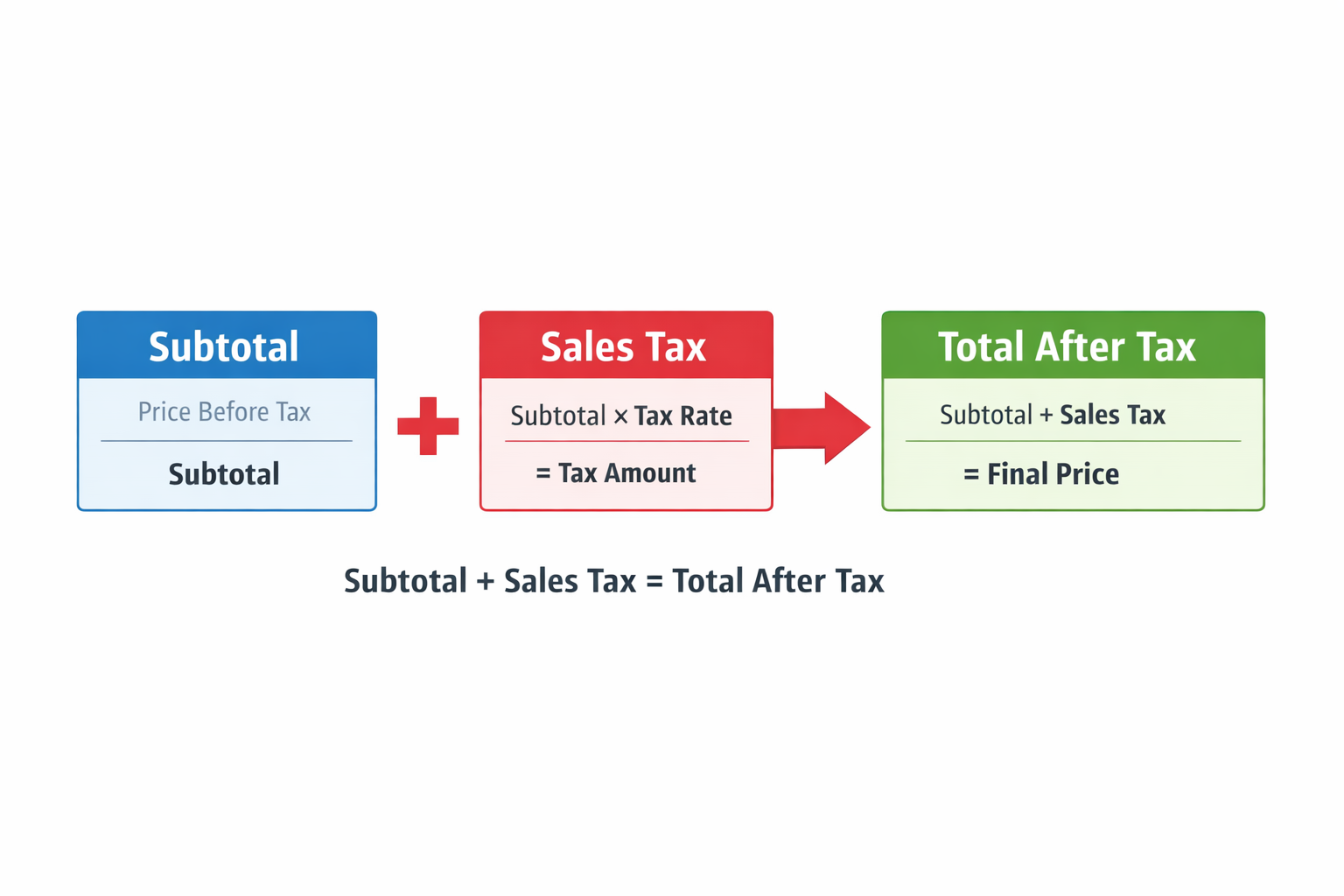
This distinction also matters for promotions. For example, a discount usually applies to the subtotal before tax, which changes the tax amount and the final total. If you’re stacking discounts and want quick math on the subtotal, the Discount Calculator can help you calculate the reduced pre-tax price first.
🔹 Multiple Items and Partial Taxability
Real receipts often include multiple items, and not everything is always taxed the same way. Some items may be exempt, taxed at a different rate, or subject to special local rules. The safest approach is to compute tax on the taxable subtotal rather than the full cart subtotal.
If only part of your cart is taxable, calculate tax like this:
Tax = Taxable Subtotal × r, then add it to the overall subtotal to estimate the final total.
- Taxable subtotal: sum of items that are taxed at the chosen rate.
- Non-taxable subtotal: items that are exempt or taxed differently.
- Best practice: calculate each tax group separately if your receipt uses multiple rates.
If you’re splitting a cart among friends or tracking personal spending, the fastest method is often: calculate the tax on the taxable portion, then split totals. For splitting bills, you can use the Tip Calculator as a quick way to split a final total across people (even if you set tip to 0).
🔹 Rounding and Why Totals Sometimes Look “Off”
Sales tax math is simple, but receipts can differ by a few cents because of rounding rules. Some systems round tax per item, while others calculate tax on the subtotal and round once at the end. In cash transactions, totals may also be rounded to the nearest denomination.
Small differences are usually explained by one of these methods:
round(Σ item_tax) vs round(tax_on_subtotal).
Both approaches can be valid depending on the store’s setup and local requirements.
- Per-item rounding: tax is calculated and rounded for each line item, then added up.
- Subtotal rounding: tax is calculated on the taxable subtotal, then rounded once.
- Mixed rates: different tax rates on different items increases rounding variance.
- Displayed vs stored values: receipts may show 2 decimals while systems store more precision internally.
In the calculator above, you can adjust rounding to match how you want values displayed. If you need an exact match to a receipt, use the same decimal settings and make sure you’re applying tax to the same taxable amount.
🔹 Sales Tax vs VAT
People often mix up sales tax and VAT (Value-Added Tax) because both increase the final price. The practical difference is usually how and when the tax is added and displayed.
- Sales tax: commonly added at checkout (you see subtotal first, then tax, then total).
- VAT: often included in the displayed price (you see a tax-inclusive price and the VAT portion may be listed on the receipt).
This calculator focuses on the same math pattern you see on receipts: separate the pre-tax amount and the tax portion.
If a price is tax-inclusive, “remove tax” uses Total ÷ (1 + r) to find the pre-tax amount.
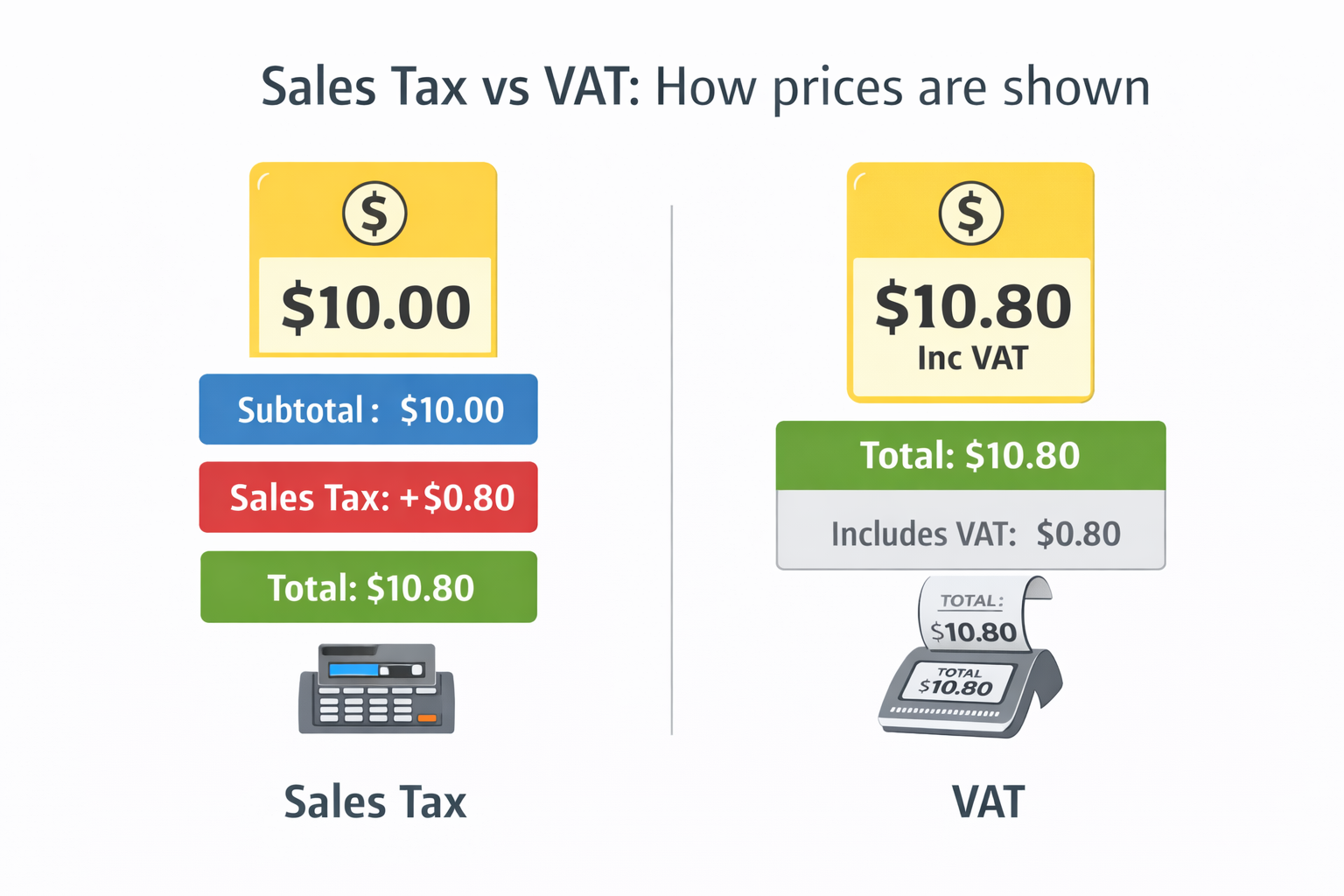
No matter which system you’re dealing with, the key is knowing whether the number you have is a subtotal (before tax) or a total (after tax). Once that’s clear, the formulas in this page stay consistent.
🔹 Tips for Accurate Sales Tax Calculations
Most “wrong tax” situations come from using the wrong base amount (taxable vs non-taxable), mixing tax-inclusive vs tax-exclusive prices, or dealing with multiple rates. These quick checks help you stay accurate.
- Confirm what you’re starting with: subtotal (before tax) or total (after tax).
- Use the taxable amount: not every item is taxed the same way everywhere.
- Watch rounding: item-level rounding can differ from subtotal-level rounding.
- Keep rates consistent: make sure the rate you entered matches the jurisdiction.
If your goal is to hit a specific “final price” (for example, a budget cap), it can help to calculate
the maximum pre-tax amount you can spend. Use “remove tax” with your target total, or calculate:
Max Subtotal = Budget ÷ (1 + r).
For quick budget planning across multiple purchases, you can also use the Calorie Calculator if you’re tracking grocery spending alongside nutrition goals (useful when comparing receipt totals week-to-week).
🔹 Sales Tax for Businesses
If you sell products or taxable services, sales tax usually needs to be shown as a separate line item on invoices and tracked for reporting. Even if your checkout system calculates everything automatically, a manual calculator is useful for quotes, custom invoices, and quick validation.
- Quoting a customer: estimate the total by adding tax to your quoted subtotal.
- Back-calculating from a payment: if you received a tax-inclusive amount, remove tax to get the pre-tax subtotal and the tax portion.
- Tracking tax collected: total tax collected across sales can be estimated from taxable sales and the rate.
A simple reporting-style calculation looks like this:
Total Tax Collected = Taxable Sales × r.
If you operate across multiple rates (for example, different locations or item categories),
it’s usually clearer to calculate each group separately and then combine the results.
For accurate bookkeeping, make sure you’re applying the rate to the correct taxable amount and that your rounding method matches your invoicing or POS system (per-item vs subtotal rounding).
🔹 How to Find the Correct Sales Tax Rate
To get accurate results, you need the right sales tax rate for the location and the type of item or service. In many places, the final rate can be a combination of multiple layers (for example, a state/province rate plus one or more local rates).
If you’re working from a receipt and don’t know the rate, you can estimate it:
Rate (%) = (Tax ÷ Subtotal) × 100.
This works best when the subtotal is fully taxable and rounding is minimal.
- For shoppers: check the receipt (tax line + subtotal) or store checkout summary.
- For businesses: use the official tax authority guidance for your jurisdiction and your item category.
- For mixed carts: if only part of the subtotal is taxable, calculate rate from the taxable portion, not the full subtotal.
- For online sales: tax can depend on shipping destination and product classification.
Once you have a reliable rate, the formulas stay the same. Use “Add Tax” for quotes and budgeting, and “Remove Tax” for breaking down tax-inclusive totals on receipts or invoices.
🔹 Quick Recap
Sales tax calculations become easy when you know whether your starting number is a subtotal (before tax) or a total (after tax). From there, the same two equations solve most real-life scenarios.
- Add tax:
Total = Subtotal × (1 + r) - Remove tax:
Subtotal = Total ÷ (1 + r) - Tax amount:
Tax = Total − Subtotal(orSubtotal × r)
If you keep these relationships in mind and apply the rate to the correct taxable amount, you can reliably estimate totals, validate receipts, and create clean invoice breakdowns.
🔹 FAQ
Convert the rate to a decimal and multiply the subtotal:
Tax = Subtotal × r, then Total = Subtotal + Tax.
If the total already includes tax, divide by (1 + r):
Subtotal = Total ÷ (1 + r) and Tax = Total − Subtotal.
Common reasons are rounding differences (per item vs subtotal), mixed tax rates, or only part of the cart being taxable.
Yes. In many places the final rate is a combined rate (state/province + local). Use the combined percentage when calculating totals.
Calculate tax on the taxable subtotal only: Tax = Taxable Subtotal × r. Add that tax to the overall subtotal for an estimate.
They’re different systems, but the math of separating pre-tax and tax portions is similar. Sales tax is often added at checkout, while VAT is often included in listed prices.
If the subtotal is fully taxable, estimate:
Rate (%) = (Tax ÷ Subtotal) × 100. Small differences can happen due to rounding.
For display, 2 decimals is common for currency. If you’re matching a receipt, you may need the same rounding method the store uses (per-item vs subtotal rounding).
Yes, as long as you know the rate being applied and whether your amount is before or after tax. Online tax can depend on destination and product type, so confirm the rate used at checkout.
🔹 References & Sources
Links below are the sources used to shape formulas, definitions, and background explanations for this Sales Tax Calculator page.
| Source | Type | Used For |
|---|---|---|
| Calculator.net — Sales Tax Calculator | Competitor reference | Content coverage, feature expectations, and common use cases. |
| CalculatorSoup — Sales Tax Calculation Formulas | Formula reference | Core equations for add tax and remove tax: (1 + rate) multiplier / divider approach. |
| Avalara — What is U.S. sales tax? | Background explainer | High-level sales tax vs VAT context and U.S. state/local structure overview. |
| Revenue.ie — On what amount do you charge VAT? | Official guidance | VAT taxable amount concept (included for the Sales Tax vs VAT section context). |
| GOV.UK — VAT Retail Schemes (Direct Calculation Scheme) | Official guidance | VAT calculation context (included for comparison/education, not for local rates). |
| Stripe — How to calculate VAT from inclusive price | Formula explainer | VAT-inclusive extraction logic similar to “remove tax” method: divide by (1 + rate). |